Step-by-step, with pictures of every screen you will meet. Takes about 5 minutes.
Open your personal link on your phone and tap the Download button. The download of the app file (an "APK") starts.
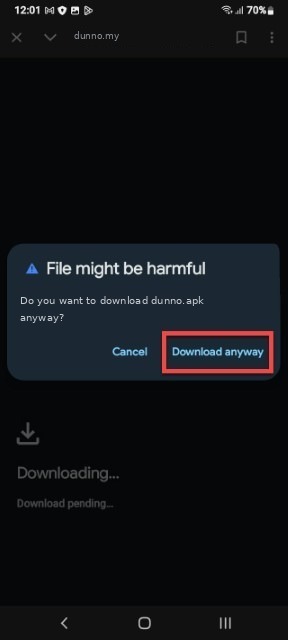
Tap "Download anyway".
When the download finishes, tap the notification (or find the file in the Downloads folder of your Files app) and tap it.
Your phone may now say it is not allowed to install unknown apps from this source. Tap Settings.
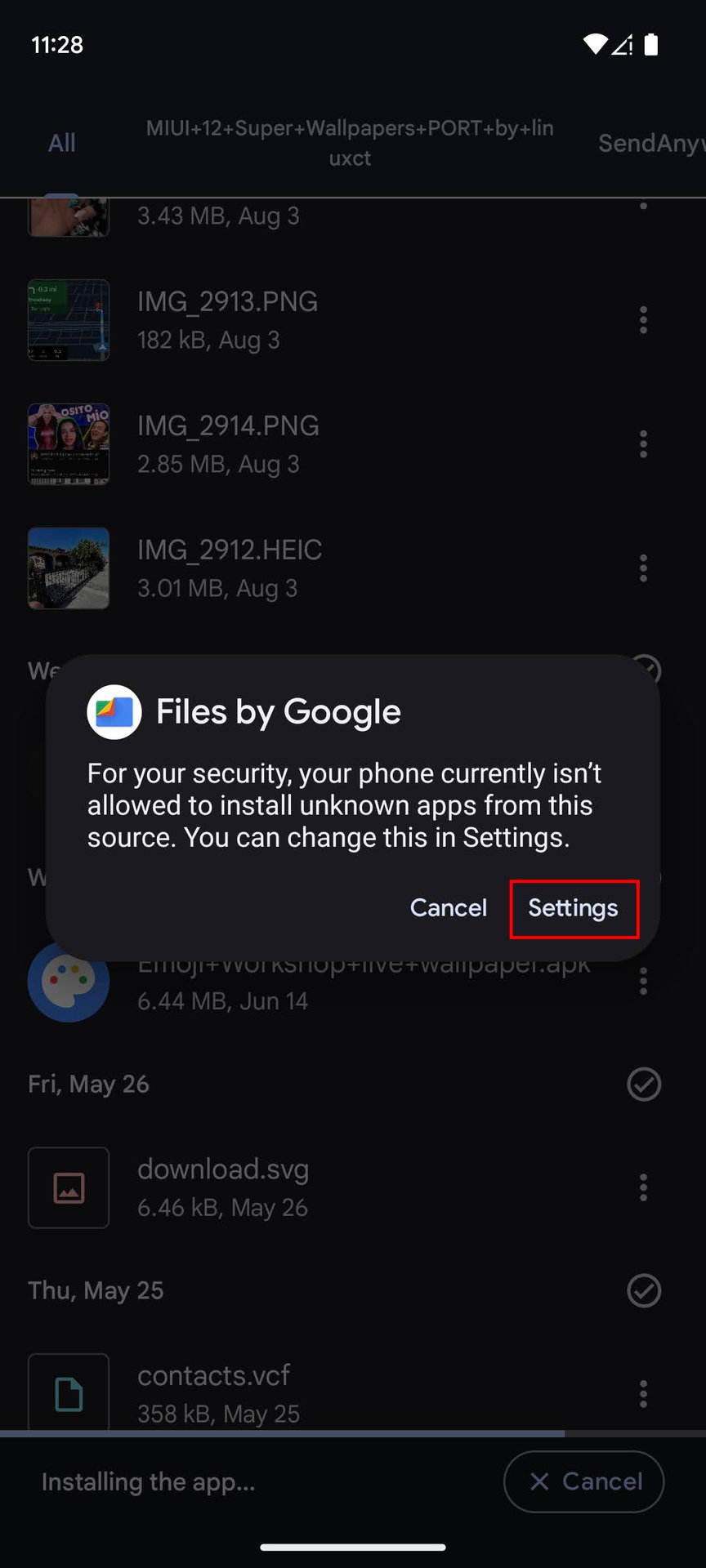
Tap "Settings".
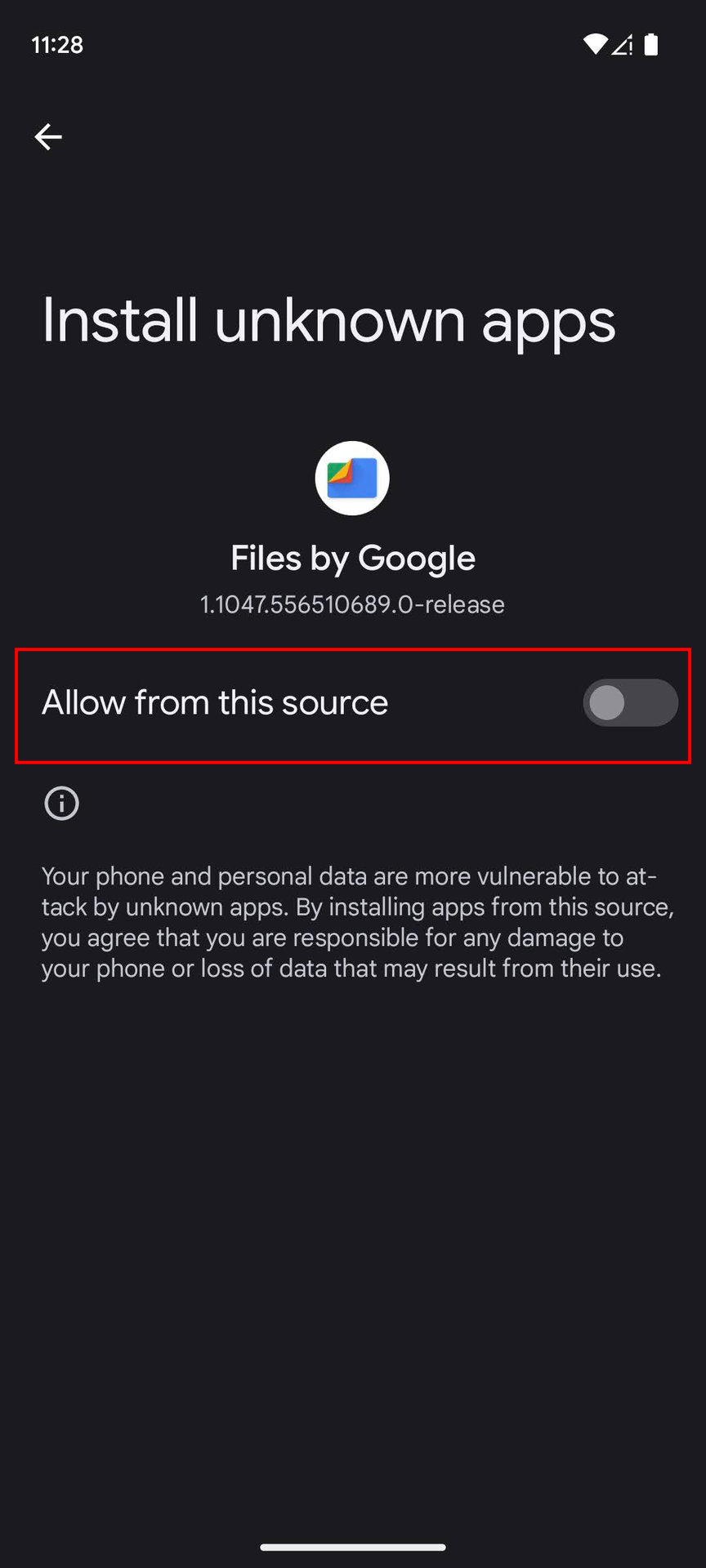
Switch the toggle on, then go back (top-left arrow).
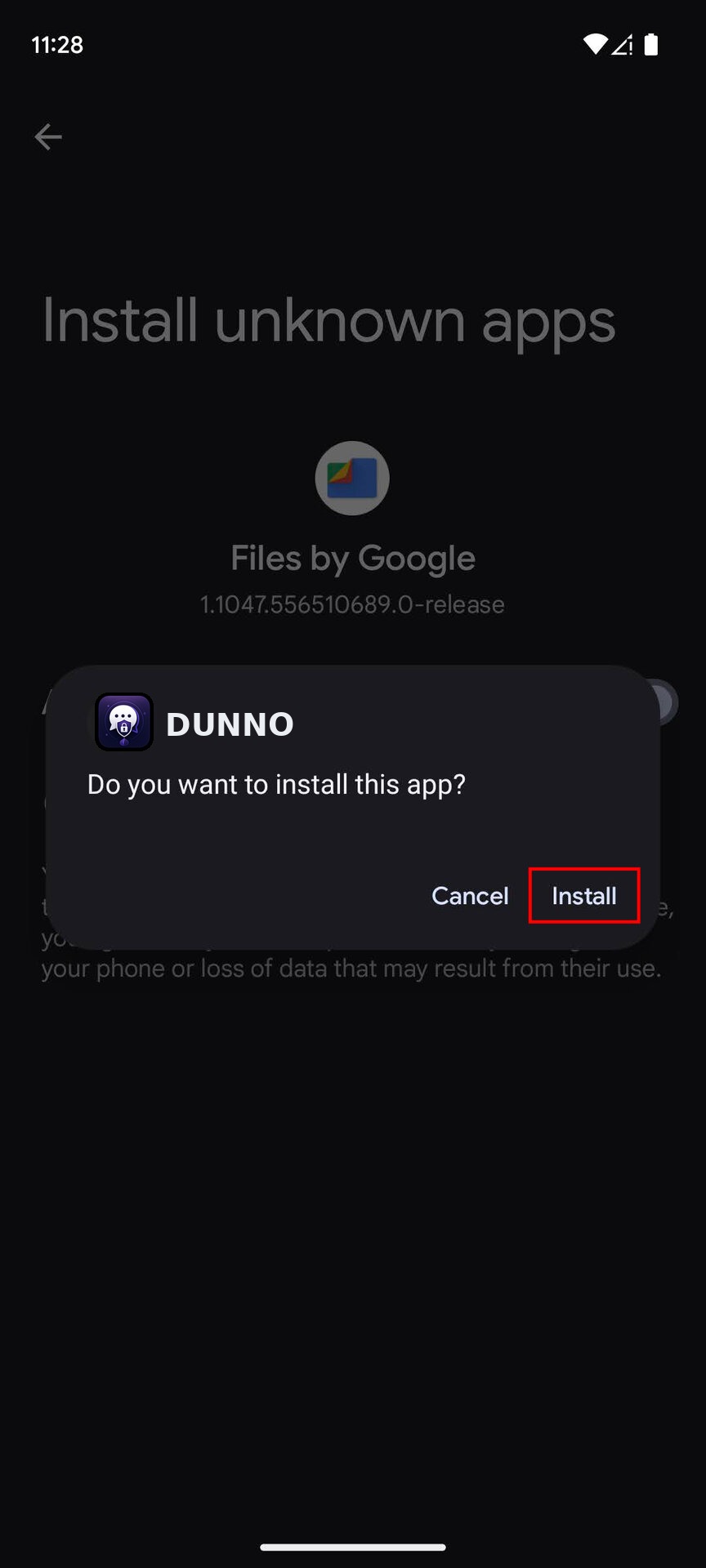
Tap "Install".
Google Play Protect may show a warning. First tap More details:
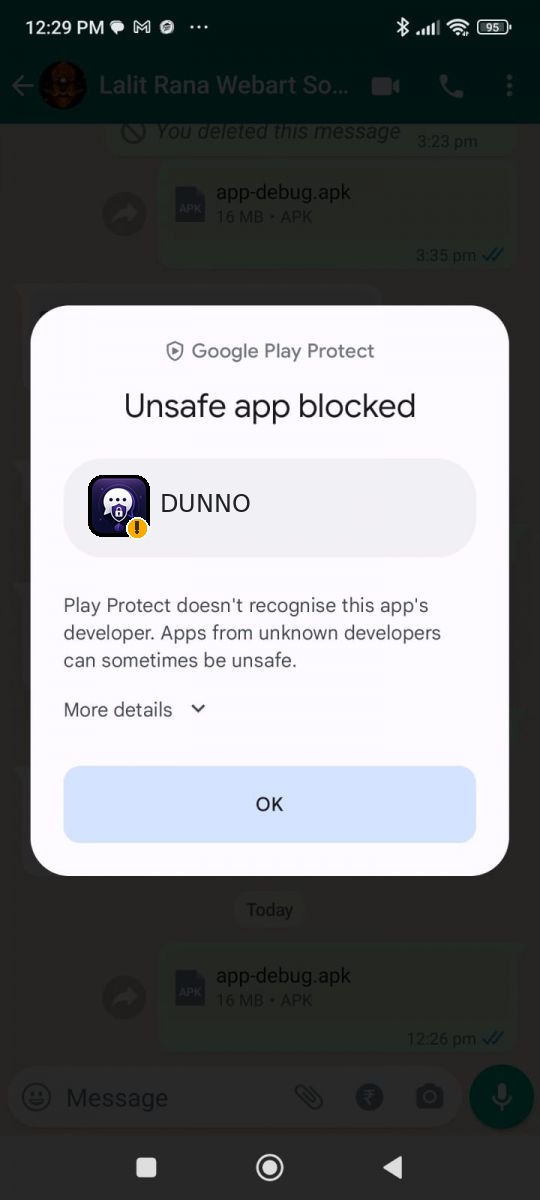
Tap "More details"…
…then tap Install anyway:
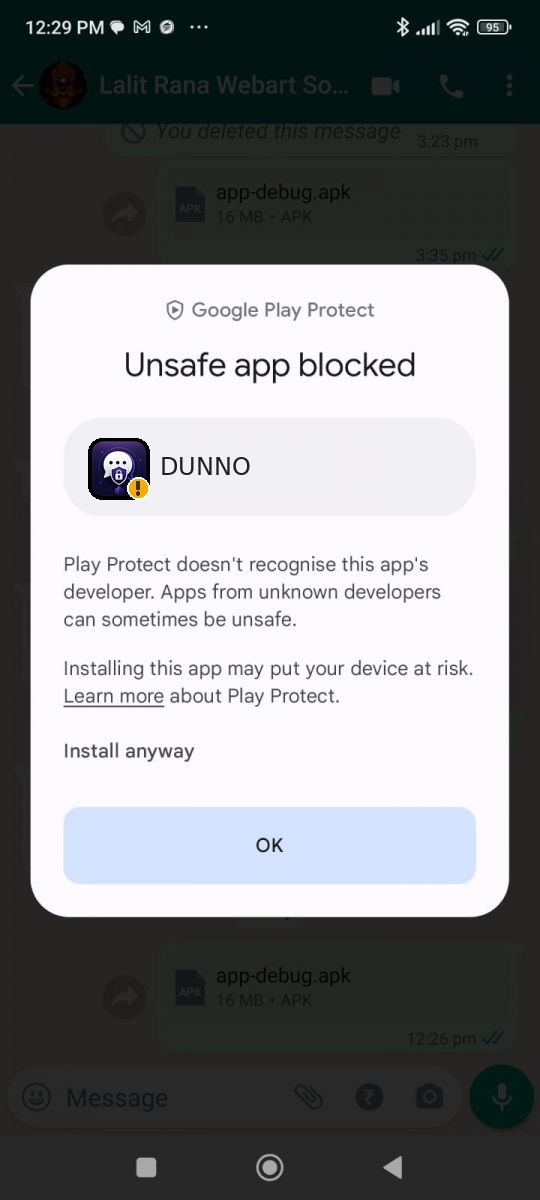
…then "Install anyway".
Tap Open (or find DUNNO in your app list). The first start does a one-time activation: do this within 48 hours after downloading. After that, the app is yours — no accounts, no ads, no tracking.
In rare cases Play Protect fully blocks an app instead of showing "Install anyway". For DUNNO this should not happen. If you see it, first make sure you downloaded from your personal dunno.my link, then tap More details and choose Install anyway if it is available. If there is truly no way to continue, contact dunno.download@gmail.com.
Usually one of these three: the download was incomplete (download the file again over a stable connection), there is not enough storage space on the phone, or the phone is very old and its Android version is too low. DUNNO requires Android 8.0 (2017) or newer.
Some Android versions show this message for apps that also support older phones. Tap Install anyway — DUNNO works fine on current Android versions.
Install DUNNO straight from Google Play with your Google account — you will not see any of these warnings. Try it free for 14 days, then keep it for €5.99 per year via Google Play Billing. This guide is for the direct (Bitcoin) download version instead.
No. The warnings are standard messages for any app that does not come from the Play Store. Android cannot tell the difference between a trustworthy independent app and a bad one, so it warns about all of them. You are installing DUNNO's direct version — deliberately outside the Play Store, to keep Google (and your data) out of it.
Correct, both exist. The Play Store route requires a Google account and Google registers your purchase and installation. The direct version you bought shares nothing with Google: no account, no registration, no update tracking. That extra privacy is exactly why the warnings in this guide appear — they are the price of leaving Google out of it.
Yes: the Play Store version installs without any warning, because it goes through Google (with a Google account and Google's registration). You chose the direct version instead — this guide gets you through it in a few minutes.
Phone brands (Samsung, Xiaomi, Oppo…) and Android versions word things slightly differently. Look for the equivalents of Download anyway, Allow from this source, More details and Install anyway — they are always there.
Your link allows 10 fresh downloads (resuming an interrupted download doesn't count). Contact us from the email address you bought with, and we'll reset it.
Download the app again through your link (that gives you a fresh activation window) and open it within 48 hours.
Screenshots of the standard Android/Chrome warnings are reference images from public sources (Android Authority, TotalAV support knowledge base, Stechies). The screens on your phone may differ slightly by brand and Android version.